Use SPLIT to divide text into columns while keeping the original string available. A delimiter, such as a pipe or comma, tells Google Sheets where each fragment ends. The important question is not just where to split, but whether empty fields need to keep their positions.
Our fictional order records contain an order number, region, and amount separated by pipes. One record has no region. We will keep that empty middle field so the amount still lands in the correct column.
Paste a small set of records
Copy the tab-separated source block below into a blank sheet at A1. Each record should remain in one cell in column A. The pipe character | separates its three fields; it is part of the text, not a column boundary in this table.
| Row | A |
|---|---|
| 1 | Raw record |
| 2 | ORD-101|East|120 |
| 3 | ORD-102|West|80 |
| 4 | ORD-103||95 |
| 5 | ORD-104|East|150 |
Copy the tab-separated data below into A1. The worksheet letters and row numbers above are display labels, not part of the data.
Raw record
ORD-101|East|120
ORD-102|West|80
ORD-103||95
ORD-104|East|150
Enter Order, Region, and Amount in B1:D1. Leave B2:D5 empty so each result has room to expand into three cells. Do not put a separate formula into every output column.
Split the first record
Enter this formula in B2:
=SPLIT(A2,"|",FALSE,FALSE)The first argument points to the original text in A2. The second specifies the pipe delimiter. The third argument, FALSE, treats the delimiter as one complete string. That makes no difference for a single pipe, but it is useful when the separator contains several characters.
The final FALSE tells Sheets to preserve empty fragments. Without it, the default behavior removes empty fragments created by consecutive delimiters. That difference matters when a missing field still belongs in a particular column.
B2 through D2 should show ORD-101, East, and 120. Copy the formula from B2 down through B5. Its relative reference changes to A3, A4, and A5. The complete result should look like this:
| Row | B | C | D |
|---|---|---|---|
| 1 | Order | Region | Amount |
| 2 | ORD-101 | East | 120 |
| 3 | ORD-102 | West | 80 |
| 4 | ORD-103 | 95 | |
| 5 | ORD-104 | East | 150 |
These are the expected values without worksheet labels. Use them for comparison; keep the formula in the output area.
Order	Region	Amount
ORD-101	East	120
ORD-102	West	80
ORD-103		95
ORD-104	East	150
Preserve the missing middle field
Look closely at ORD-103||95 in A4. The two consecutive pipes indicate an empty region between them. With the four-argument formula, C4 stays empty and D4 contains 95. The missing region remains visible through its position.
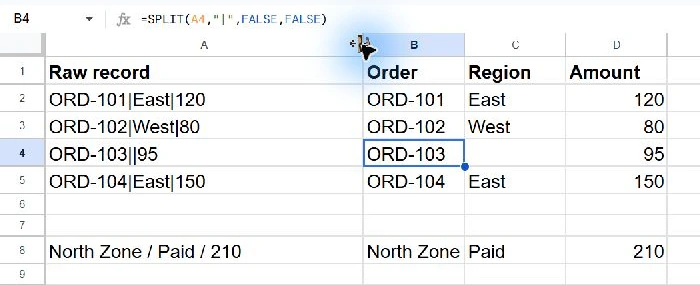
By contrast, =SPLIT(A4,"|") removes the empty fragment by default. It produces ORD-103 followed immediately by 95, shifting the amount into the position you intended for the region. A tidy-looking output can therefore contain a structural error. Check a record with a missing field before using the pattern on an entire export.
Use a separator containing several characters
Enter North Zone / Paid / 210 in A8. To split at the complete space-slash-space separator, enter this in B8:
=SPLIT(A8," / ",FALSE,FALSE)The expected fragments are North Zone, Paid, and 210. The first FALSE is essential here: the default treats each character of a delimiter independently. With default handling, the spaces inside North Zone can also become split points, even though they belong to the region name.
Neither FALSE argument removes spaces that belong to a fragment. If the source has inconsistent spacing around separators, inspect that inconsistency separately. Choose a delimiter that represents an actual boundary in your records, not a character that routinely appears inside a field.
When to use the menu instead
For a one-time conversion, the desktop browser also offers Data → Split text to columns. Select the cells, choose the command, and specify the separator. Make a copy of the source and leave enough empty columns beside it before using this method, since the operation changes the sheet’s cells.
A formula is useful when you want to retain the original column and recalculate after an edit. A menu conversion is useful when you intentionally want a fixed result. In either case, compare the resulting field positions with a known record; do not assume every splitting method treats empty fragments identically.
Check the output before calculating
SPLIT is a delimiter tool, not a general CSV parser. Quotation marks around a field do not automatically protect a delimiter inside that field. If a value itself contains the separator, use a properly structured import or a separator that cannot occur inside a field.
Also check the resulting value types before performing calculations. A fragment that looks numeric may need conversion if its formatting or locale makes it text. The examples use English function names and comma argument separators; semicolon locales may need different separators between arguments. Keep quoted delimiters exactly as written.
For related cleaning and reporting workflows, browse our Google Sheets tutorials.