A drop-down list from a range lets several cells share the same set of choices. It is useful for task statuses, departments, product categories, or any field that needs consistent labels. Instead of typing each option into every rule, keep the choices in one clearly labeled part of the sheet.
We will build a task-status dropdown, limit its choices to four values, and check the result with a simple count. This example uses a single choice per cell; it does not enable multiple selections.
Create the task list and the allowed choices
In a blank sheet, paste the tab-separated task block below at A1. The status cells to validate are C2:C6. Leave the headers in row 1 outside the selection.
| Row | A | B | C |
|---|---|---|---|
| 1 | Task | Owner | Status |
| 2 | Write brief | Maya | New |
| 3 | Review data | Omar | In progress |
| 4 | Check totals | Lin | Blocked |
| 5 | Prepare chart | Ana | Done |
| 6 | Share findings | Maya | New |
Copy the tab-separated data below into A1. The worksheet letters and row numbers above are display labels, not part of the data.
Task	Owner	Status
Write brief	Maya	New
Review data	Omar	In progress
Check totals	Lin	Blocked
Prepare chart	Ana	Done
Share findings	Maya	New
Paste the separate tab-separated status block below at H1. Its header belongs in H1; the four actual choices belong in H2:H5.
| Row | H |
|---|---|
| 1 | Allowed status |
| 2 | New |
| 3 | In progress |
| 4 | Blocked |
| 5 | Done |
Copy the tab-separated data below into H1. The worksheet letters and row numbers above are display labels, not part of the data.
Allowed status
New
In progress
Blocked
Done
The source list is separate from the working table so changing an option does not overwrite a task. These labels already match the example’s existing statuses. If you use your own data, inspect its current values first: adding a validation rule does not make inconsistent historic labels equivalent.
Create the range-based dropdown
- Select
C2:C6. - Open Data → Data validation and choose Add rule if a new rule is needed.
- Under Criteria, choose Dropdown from a range.
- Select or enter
H2:H5as the source range. - Keep invalid entries rejected, choose a display style if desired, and click Done.
Open the dropdown in C2. You should see New, In progress, Blocked, and Done. The header Allowed status must not appear as a choice. If it does, edit the source range to exclude H1.
The validation rule has two different ranges. Its application range, C2:C6, identifies where people make a selection. Its source range, H2:H5, identifies which values they can select. Reversing them would create a different rule, so check both fields before finishing.
Check that the choices work
Enter the following formula in E2, away from both tables:
=COUNTIF(C2:C6,"Done")The starting result is 1, because Prepare chart is the only task marked Done. Use the dropdown in C2 to change Write brief from New to Done. E2 should now show 2. This checks the selected cell value, not just whether a colored chip appears.
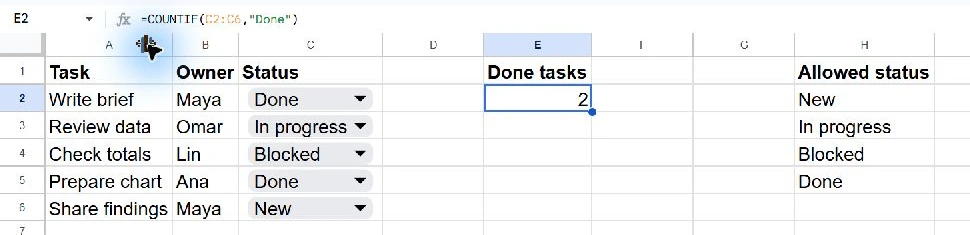
Next, try entering a value outside the list, such as Finished. With invalid input rejected, that entry should not replace a valid selection. If you prefer to allow exceptions, the advanced options can show a warning instead. That is a different policy: a warning permits inconsistent values, which can make a count of Done miss a task someone labeled Finished.
Maintain the source range
Editing a value inside H2:H5 changes the options provided by that range. To add a fifth option, enter On hold in H6 and extend the rule’s source to H2:H6. A fixed range ending at H5 does not include a new value in H6.
Treat renaming an option separately from updating existing records. If a label changes, review cells that already used the old text rather than assuming their stored values have been rewritten. Likewise, deleting an option is not the same operation as clearing task cells that contain it.
When adding tasks below row 6, extend the application range to cover the new status cells. You can plan a larger application range, but keep it within the area intended for tasks; applying the rule to unrelated cells makes the sheet harder to maintain.
Keep the list predictable
Use unique labels without leading or trailing spaces, and protect the source list from accidental editing when appropriate. Colors and chip styles can help scanning, but the text label should remain understandable on its own. A dropdown organizes input; it is not an access-control mechanism.
These menu steps describe Google Sheets in a desktop browser; mobile controls can differ. The count formula uses an English function name and a comma separator. Adapt argument separators for your locale if needed. Find more everyday spreadsheet tasks in our Google Sheets tutorials.