Use COUNTIFS to count rows that satisfy several conditions in Google Sheets. The conditions are checked together: a ticket can belong to Support, be open, and meet a minimum-hours rule before it contributes to the count.
This example uses a fictional six-ticket log. We will count matching records, add a number condition, and then restrict the report to a date window. Every formula uses English function names and commas; a spreadsheet with different regional settings may require semicolons.
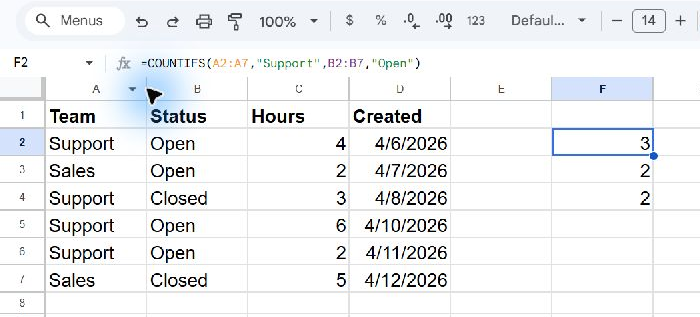
Set up one row per ticket
Copy this tab-separated block into A1 on a blank worksheet:
| Row | A | B | C | D |
|---|---|---|---|---|
| 1 | Team | Status | Hours | Created |
| 2 | Support | Open | 4 | =DATE(2026,4,6) |
| 3 | Sales | Open | 2 | =DATE(2026,4,7) |
| 4 | Support | Closed | 3 | =DATE(2026,4,8) |
| 5 | Support | Open | 6 | =DATE(2026,4,10) |
| 6 | Support | Open | 2 | =DATE(2026,4,11) |
| 7 | Sales | Closed | 5 | =DATE(2026,4,12) |
Copy only the tab-separated block below. Worksheet letters and row numbers in the preview are display labels, not part of the data.
Team	Status	Hours	Created
Support	Open	4	=DATE(2026,4,6)
Sales	Open	2	=DATE(2026,4,7)
Support	Closed	3	=DATE(2026,4,8)
Support	Open	6	=DATE(2026,4,10)
Support	Open	2	=DATE(2026,4,11)
Sales	Closed	5	=DATE(2026,4,12)
The records occupy A2:D7. Columns A and B contain labels, column C contains hours, and column D contains DATE formulas. Format D2:D7 as dates if you initially see serial numbers. DATE avoids asking Sheets to guess whether a typed date is month-first or day-first.
A row represents one ticket, regardless of how many hours it contains. Keep that definition in mind: counting tickets and adding their hours answer different questions.
Count open tickets assigned to Support
Enter the following in F2:
=COUNTIFS(A2:A7,"Support",B2:B7,"Open")The expected answer is 3. Rows 2, 5, and 6 contain both Support and Open. The open Sales ticket does not qualify, and neither does the closed Support ticket.
Each condition comes as a pair: a range, followed by the test for that range. Additional pairs use AND. Sheets compares cells from the same positions across the ranges, rather than counting each range separately and adding the results.
Add a minimum-hours condition
In F3, enter:
=COUNTIFS(A2:A7,"Support",B2:B7,"Open",C2:C7,">=4")This returns 2. The qualifying tickets have four and six hours. Their combined time is ten hours, but COUNTIFS returns two because it counts their rows.
The comparison sign belongs inside the quoted criterion. If you later put the minimum in H2, use ">="&H2 instead of ">=4". A reference inside one quoted string would be text, not an instruction to read the cell.
Count tickets created during a reporting period
For April 6 through April 10, 2026, enter this in F4:
=COUNTIFS(A2:A7,"Support",B2:B7,"Open",D2:D7,">="&DATE(2026,4,6),D2:D7,"<"&DATE(2026,4,11))The expected answer is 2: the qualifying records dated April 6 and April 10. The April 11 ticket is excluded.
The lower boundary includes April 6. The upper boundary says “before April 11,” which also includes timestamps throughout April 10. This is safer for timestamp data than comparing against midnight at the beginning of the last intended date.
Check the ranges before trusting the count
All criteria ranges must have the same shape and describe corresponding records. A2:A7 and B3:B8 have equal lengths but are shifted by one row, so they test different tickets against each other. Begin and end the ranges on the same source rows.
When a result is unexpected, temporarily count the team alone, then add status, then hours or dates. The point where the count changes tells you which condition removes records. Check labels for trailing spaces and dates for text storage rather than changing the formula at random.
Understand the limits of a row count
COUNTIFS does not establish that ticket IDs are unique. If one source record is pasted twice, both copies can count. It also evaluates matching rows hidden by a normal sheet filter; hiding a record does not remove it from the referenced data.
Finally, two criteria applied to the same status cell still use AND. Asking it to equal both Open and Closed cannot match a single record. Decide whether your reporting rule really requires every condition, or whether you mean an alternative such as one status or another.