TRIM removes ordinary spaces from the beginning and end of text and reduces repeated internal spaces to one. In Google Sheets, that makes imported labels easier to compare without deleting the raw source column.
Some invisible characters are not ordinary spaces. We will distinguish a normal spacing problem from a nonbreaking space, then apply a narrowly defined replacement instead of assuming one function cleans every kind of whitespace.
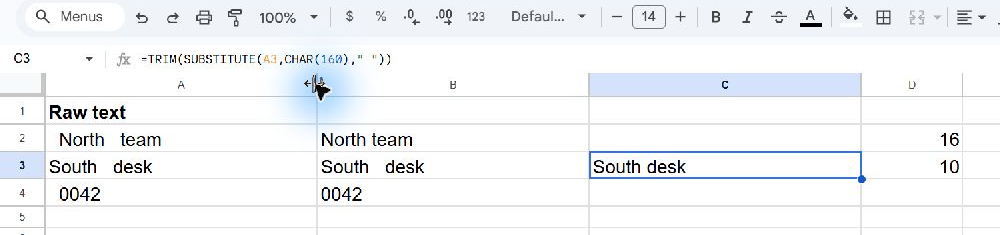
Create text with reproducible spacing
Copy this tab-separated block into A1 on a blank worksheet:
| Row | A |
|---|---|
| 1 | Raw text |
| 2 | =" North team " |
| 3 | ="South "&CHAR(160)&" desk" |
| 4 | =" 0042 " |
| 5 | ="" |
Copy only the tab-separated block below. Worksheet letters and row numbers in the preview are display labels, not part of the data.
Raw text
="  North   team  "
="South "&CHAR(160)&" desk"
="  0042  "
=""
The example uses formulas that return text so the spaces remain reproducible when pasted. Google Sheets can trim directly entered text, which could otherwise hide the problem we want to demonstrate. The text inside the first formula has two leading spaces, three spaces between North and team, and two trailing spaces.
A3 inserts a nonbreaking space using CHAR(160). A4 contains the identifier 0042 surrounded by ordinary spaces. The formula in A5 returns empty text. Keep column A unchanged as your reference.
Clean ordinary spaces in a helper column
Enter this in B2:
=TRIM(A2)The expected result is North team. Copy the formula down through B5. B4 becomes the text 0042; trimming its surrounding spaces does not require converting it into a number.
For a simple length check, enter =LEN(A2) in D2. The original text contains 16 characters, including its spaces. The cleaned North team label contains ten. Looking only at cell alignment is not a reliable way to discover invisible characters.
Recognize a nonbreaking space
Inspect B3 carefully. TRIM does not remove the nonbreaking space inserted in A3. A label can still appear to have a gap while containing a different character from an ordinary typed space.
For this known character, enter the following in C3:
=TRIM(SUBSTITUTE(A3,CHAR(160)," "))The expected result is South desk. SUBSTITUTE changes CHAR(160) to an ordinary space; TRIM then reduces the resulting run of ordinary spaces. Enter =LEN(C3) in D3 to confirm the cleaned result has ten characters.
This is a targeted rule for a known nonbreaking-space character. It is not a general promise to remove tabs, line breaks, every Unicode space, or every invisible mark that a website or export might contain.
Choose cleanup rules according to the field
Collapsing multiple spaces makes sense for the sample department labels. It may be inappropriate for fixed-width records, preformatted text, or strings where spacing carries meaning. Decide whether those internal spaces are mistakes before removing them.
The identifier example also illustrates a separate issue. Removing spaces from 0042 should not automatically turn it into 42. If the source field is an identifier, preserve its text representation unless a documented rule says otherwise.
Replace source values only after checking
A helper column lets you compare cleaned and raw values side by side. Check a few ordinary labels, one nonbreaking-space example, one identifier, and one blank result before using the cleaned column in a report.
If you eventually need static cleaned text, copy the reviewed results and use the appropriate paste-values operation in a separate destination. Pasting over the raw input removes the simplest way to investigate a disputed cleanup later.
Troubleshoot text that still fails to match
Use length checks to establish whether extra characters remain, then inspect the actual source rather than repeatedly applying TRIM. Two visible labels can differ in punctuation, character case, or a nonbreaking space. Spaces are only one possible explanation.
Clean related columns with the same explicit rule when you intend to match them. Preserve examples of the original values and document any replacement beyond ordinary spacing, so another person can reproduce what changed.