COUNTIFS counts records that satisfy several conditions at once. It is a useful way to answer questions such as “How many open tickets belong to Support?” without manually filtering and counting the rows.
Below, a hypothetical ticket log gives us text, number, and date conditions to test. Every record counts once, regardless of its hours value. These formulas use English function names and commas; use semicolons instead if your Excel locale requires them.
1. Create a small ticket log
Paste this tab-separated data into A1 on a blank worksheet. The DATE formulas create actual Excel dates rather than relying on an ambiguous typed date. Format D2:D7 as dates if they appear as serial numbers.
Team	Status	Hours	Created
Support	Open	4	=DATE(2026,4,6)
Sales	Open	2	=DATE(2026,4,7)
Support	Closed	3	=DATE(2026,4,8)
Support	Open	6	=DATE(2026,4,10)
Support	Open	2	=DATE(2026,4,11)
Sales	Closed	5	=DATE(2026,4,12)
Use rows 2 through 7 in every criteria range. A row represents one ticket; Hours is a property of that ticket, not a quantity that COUNTIFS adds.
2. Count Support tickets that are open
Enter this formula in F2:
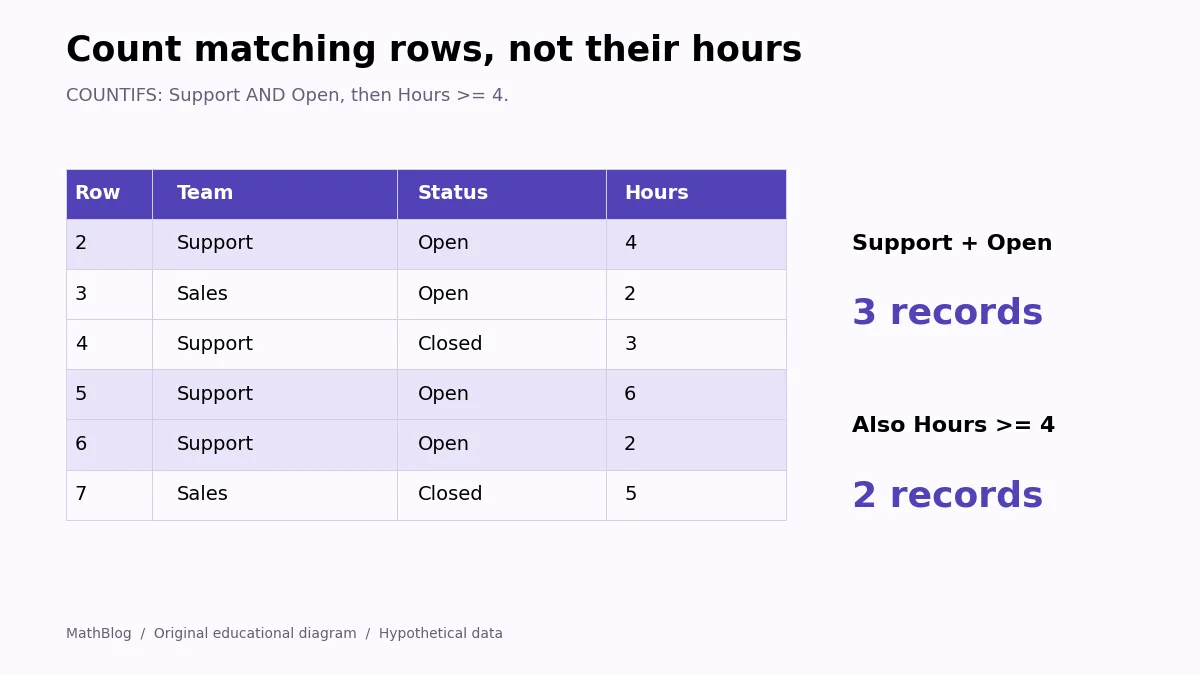
=COUNTIFS(A2:A7,"Support",B2:B7,"Open")The answer is 3. Rows 2, 5, and 6 have both the required team and the required status. The open Sales ticket fails the team condition; the closed Support ticket fails the status condition.
COUNTIFS processes corresponding positions in its ranges together. Its conditions use AND, so adding a second condition narrows the qualifying records. You do not need a separate IF function around it.
3. Add an hours threshold
To count open Support tickets with at least four hours, enter:
=COUNTIFS(A2:A7,"Support",B2:B7,"Open",C2:C7,">=4")This returns 2, selecting the four-hour and six-hour tickets. A count of 2 is different from their combined ten hours. Use a conditional sum when you want the total hours rather than the number of records.
For a reusable input, enter 4 in H2 and replace the final criterion with ">="&H2. Changing H2 to 5 leaves one qualifying ticket. Comparison signs and a cell reference must be joined, rather than placed together inside one quoted string.
4. Limit the count to a date window
Suppose the report covers April 6 through April 10, 2026. Give the formula an inclusive lower boundary and an exclusive upper boundary:
=COUNTIFS(A2:A7,"Support",B2:B7,"Open",D2:D7,">="&DATE(2026,4,6),D2:D7,"<"&DATE(2026,4,11))The answer is 2: the open Support tickets dated April 6 and April 10. The April 11 ticket is outside the window. Using “before April 11” also includes any April 10 time of day if your real data contain timestamps.
Use this pattern for a month as well: greater than or equal to the first day, and less than the first day of the following month. Keep the boundaries as real dates or DATE formulas, rather than locale-dependent strings inside the criteria.
5. Understand what a row count does not tell you
COUNTIFS counts matching records, not unique people, customers, or ticket identifiers. If the same ticket is accidentally pasted twice, both rows can qualify. Before using the count in a report, decide whether one source row really represents one thing you intend to count.
It also does not switch to counting only visible rows when you filter the worksheet. Treat it as a calculation over the specified ranges, independent of which rows happen to be displayed.
Troubleshoot a count that looks wrong
- Align all ranges. A2:A7 and B3:B8 have the same size but compare the wrong records. Same size alone is not enough.
- Check number storage. Use
=ISNUMBER(C2)and=ISNUMBER(D2)when imported hours or dates behave unexpectedly. - Check spelling and spaces. A visually similar label can contain an invisible trailing space.
- Test the conditions separately. Count the team alone, then add status, then hours. The step where the count changes reveals which rule excludes records.
- Avoid incompatible conditions. Asking one Status cell to equal both Open and Closed cannot match any row.
You can find more techniques for working with tabular records in MathBlog’s Excel tutorial collection.